Page layout in Sitebuilder
To explain the structure and layout of a page in Sitebuilder as clearly as possible, we use a blank template. If you want to decide the layout of your website yourself, this template is also the easiest one to start with.
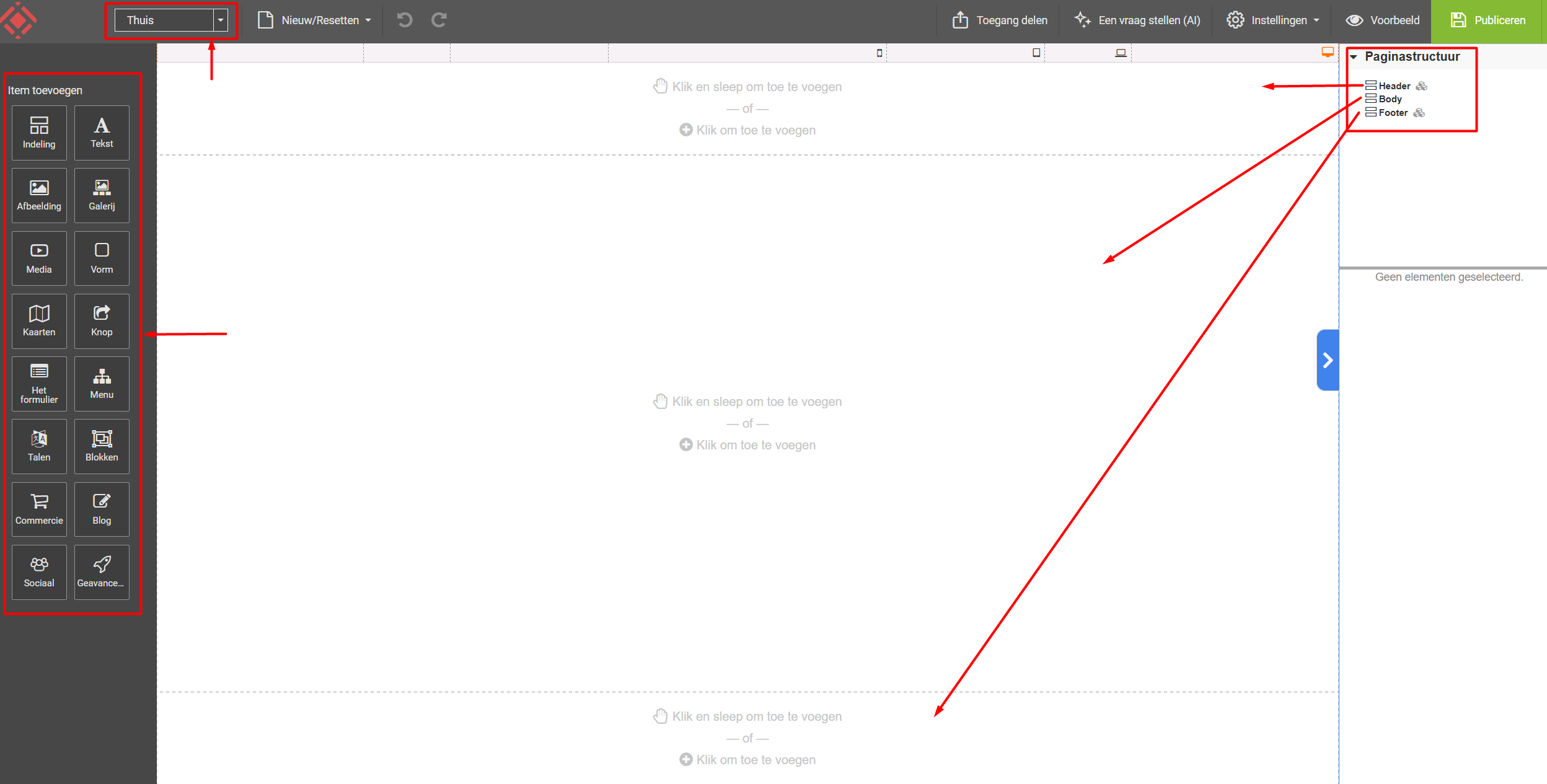
When we start with a blank template, you should see the following on your screen:
1. The page overview
Going clockwise, at the top left of the main page we see a window containing the word ‘thuis’ (home). This block gives an overview of the pages you have already created and the page you are currently working on. So in this example we only have a home page so far.
For more explanation about how the page overview works and what it means, click Creating a page in Sitebuilder.
2. The page structure
A page in Sitebuilder always consists of a number of blocks. You can add or remove these blocks yourself. If you have already chosen a template, a number of blocks have already been placed on the page, including images or text, for example.
In our blank template you see 3 white blocks in the middle, structured as follows:
- a top block for the header of your website
- a middle block (body) where you can place your text, images, blogs, products, etc.
- a bottom block, the footer
- How do I change my template in Sitebuilder?
- Accepting payments in Sitebuilder
- Optimizing the mobile view
For more explanation about the page structure, click here.
3. The page items
On the left side of the page you see a large number of items. These items all relate to the page you are currently building on the right side. For more information about these items, click here.
Still can't figure it out, or do you have any other questions? Then contact us. We are happy to help!
Looking for a website builder? See our plans.
0 van 0 vonden dit nuttig
