How do I change my template in Sitebuilder?
When you chose a template while starting up the Sitebuilder, that is also the template you will see on screen when you continue building your website.
Not happy with your choice after all? Then you can easily change your template again.
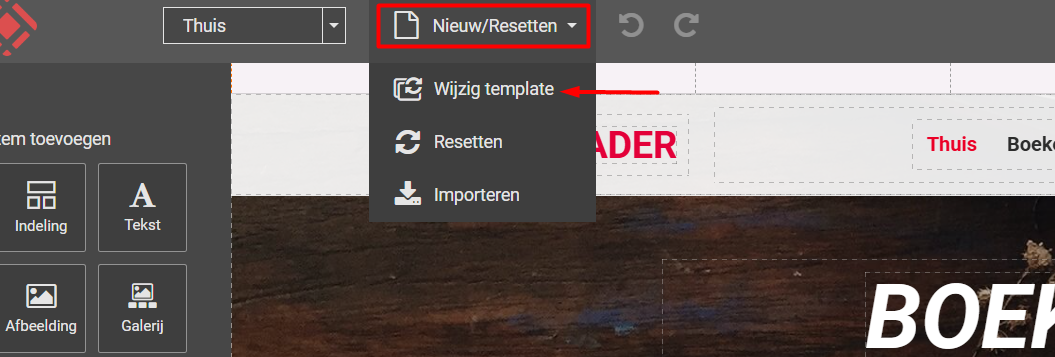
Click the 'New/Reset' option at the top and then 'change template'
You now return to the screen you saw when you first started your website.
Now select the template you would like to use instead of your current template.
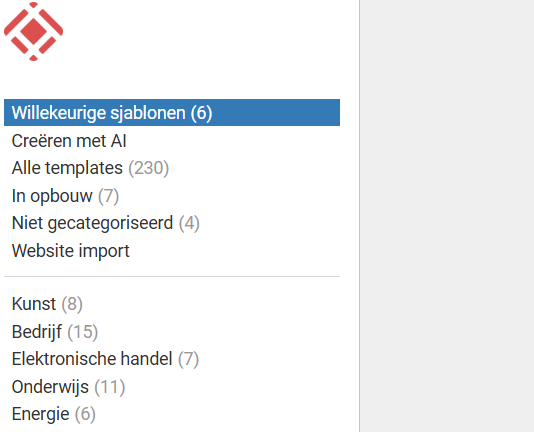
Once you have chosen a different template, click 'Select'.
You will then see the pop-up below:
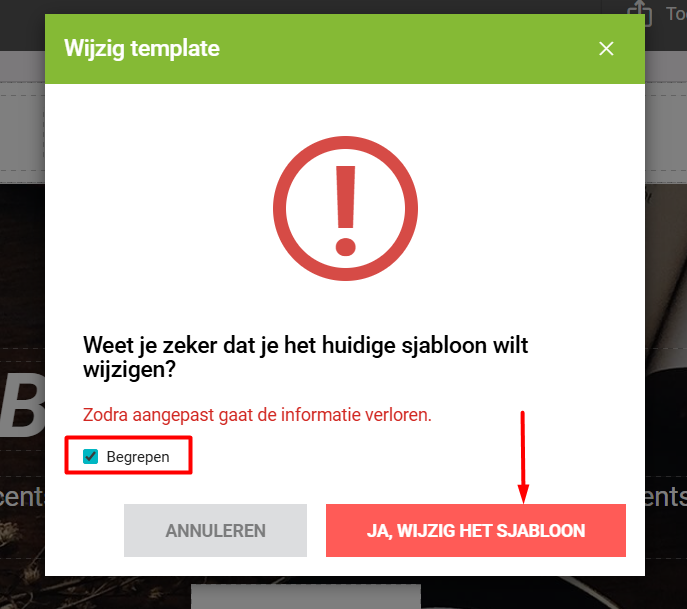
To prevent you from changing a template by accident, you need to tick the 'Understood' box, after which you can click 'Yes, change the template'
TIP
In principle, any pages and other content you have already created will not be lost, because they are separate from the layout (template) of your website. Your pages may, however, be displayed differently, for example because your new template uses a different block structure.
So we recommend that you first make a backup of your current website and only then change your template. If you are not happy with the result, you can easily restore the backup of the website you made earlier.
Want to know how to make a backup of your website? Click Making a backup of your website (Sitebuilder).
If you still cannot figure it out or have any other questions, please contact us. We are of course happy to help you!
Looking for a website builder? See our plans.
0 van 0 vonden dit nuttig
