How to restore a backup of your website (Sitebuilder)
While building your website, there can be all kinds of reasons why you are not happy after all and would rather go back a few steps in time. That is why it is important to make a backup of your website regularly. You can read how to do that in Making a backup of your website (Sitebuilder). In this guide we tell you how to restore a backup you have made.
Restoring a backup of your website
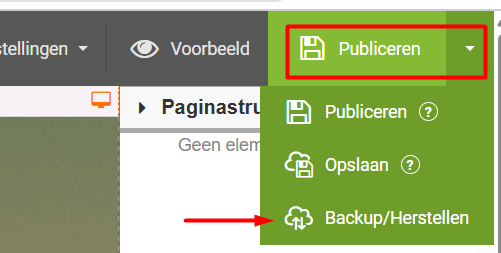
When you want to restore a backup, click the drop-down option next to 'Publish' at the top right of the start page. Then choose 'Backup/Restore'
In the pop-up that now appears (shown below), the choice is set to 'Backup' by default, so first select 'Restore'. Once you have done that, you will see 2 options.
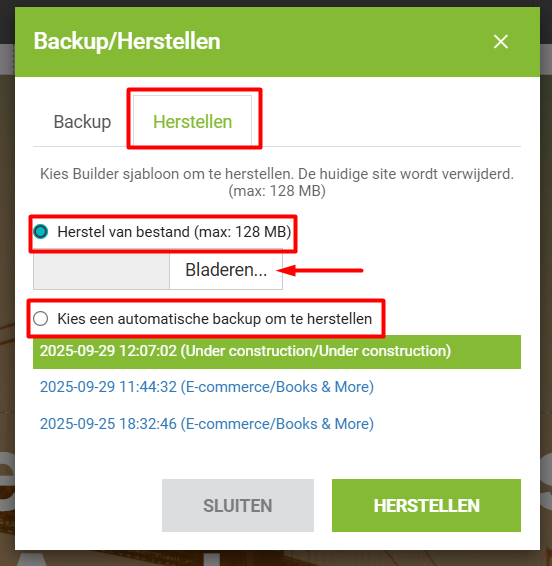
Option 1: Restore from file
With this option you select the backup file you made earlier yourself. By clicking 'Browse' you can look for the file in the folder where you saved it when you made the backup.
Select the file and click 'RESTORE'.
The system will then upload the file and show that version on your screen.
Option 2: Choose an automatic backup to restore
Besides the backups you can make yourself, Sitebuilder also makes (automatic) backups of your website. These backups are made every 5 minutes, but only as long as changes are being made to your website. These backups are stored on the Sitebuilder server.
Theory7 backups
Depending on the hosting plan you have with Theory7, Theory7 also makes automatic backups, not just of your website but of all your data. These backups are stored on Theory7's servers. You restore a backup made by Theory7 through DirectAdmin. For now, the 2 options above are enough.
So in theory, 3 different backups of your website may have been made.
TIP
To stay in control of your backups, we would advise you to work primarily with manual backups, and to use those backups for any restores as well. The advantage is that you know best when making a backup is useful (for example because you have just done a lot of work on your website).
This way, you can actually use the automatic backups as a 'backup' of your manually made backups, not least because the automatic backups are stored in a different location than your own computer.
Do you also want to know how to make a backup of your website? Then click Making a backup of your website (Sitebuilder).
Still can't quite figure it out, or do you have any other questions? Then get in touch with us. We are happy to help!
Looking for a website builder? View our plans.
0 van 0 vonden dit nuttig
