How Do I Choose a Template in Sitebuilder?
Which template you choose depends on how you picture the layout of your website.
1. Picking a new template
When you log in to Sitebuilder for the first time, you'll see a number of options.
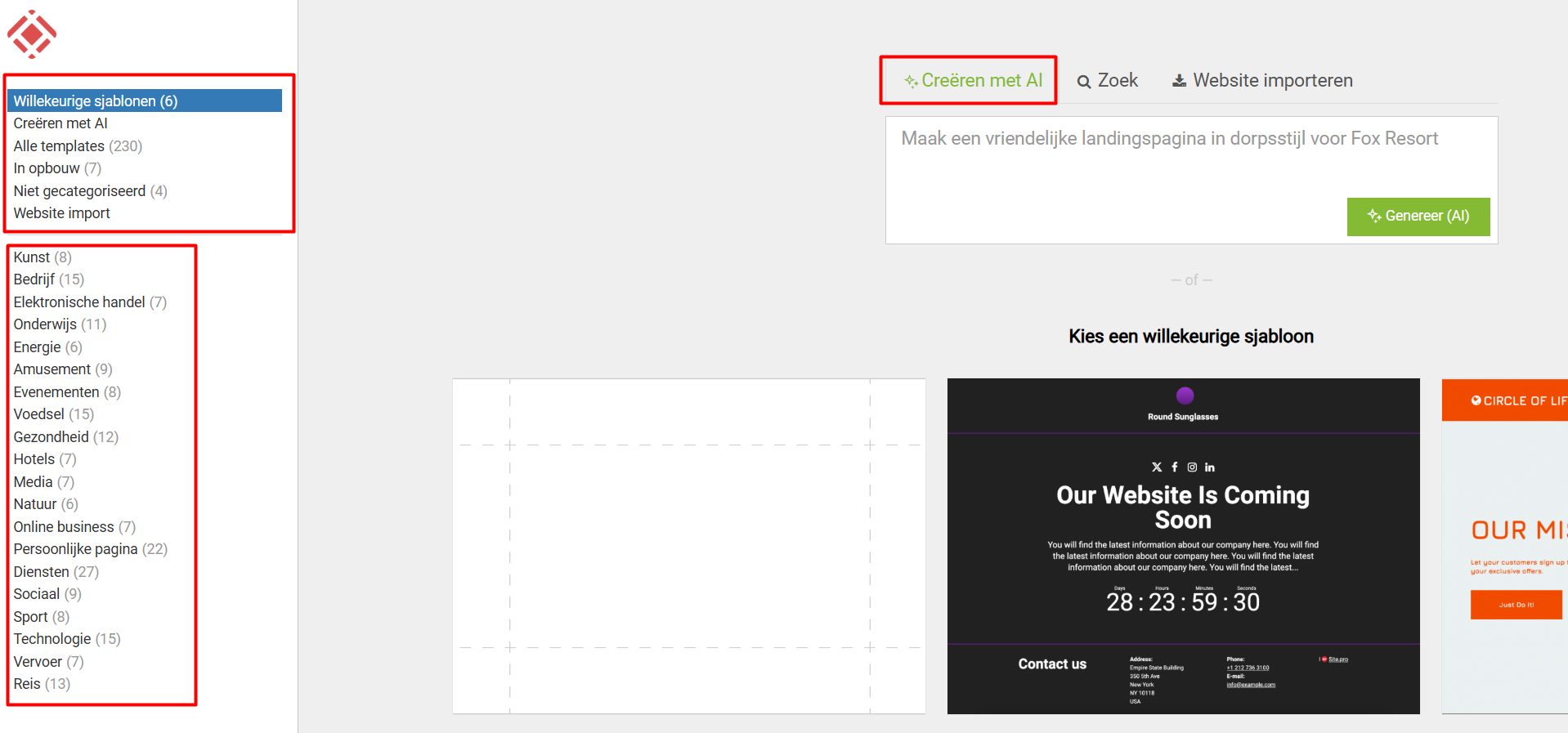
In the top block on the left side of your screen you'll see several options:
- random templates: as the name says, you'll find a number of example templates on the right.
- create with AI: want to know more about this? Then check these guides.
- all templates: this shows an overview of all available templates, in alphabetical order.
- under construction: these are templates you can show on the front end while you're still building your website.
- uncategorized: a somewhat redundant section
- import website: click here if you want to import an existing website
The block below lists all the templates again, but this time sorted into specific categories.
Don't really have an idea yet of how you want to lay out your website? Then choose a blank template. You can then build and fill in everything yourself.
2. Selecting a template
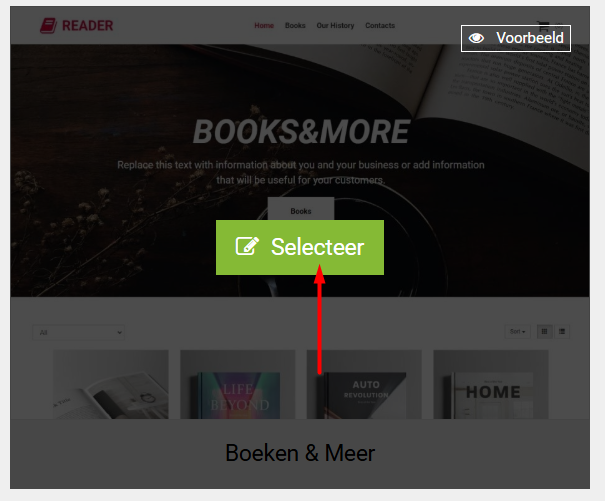
Once you've picked a new template, click 'Select'.
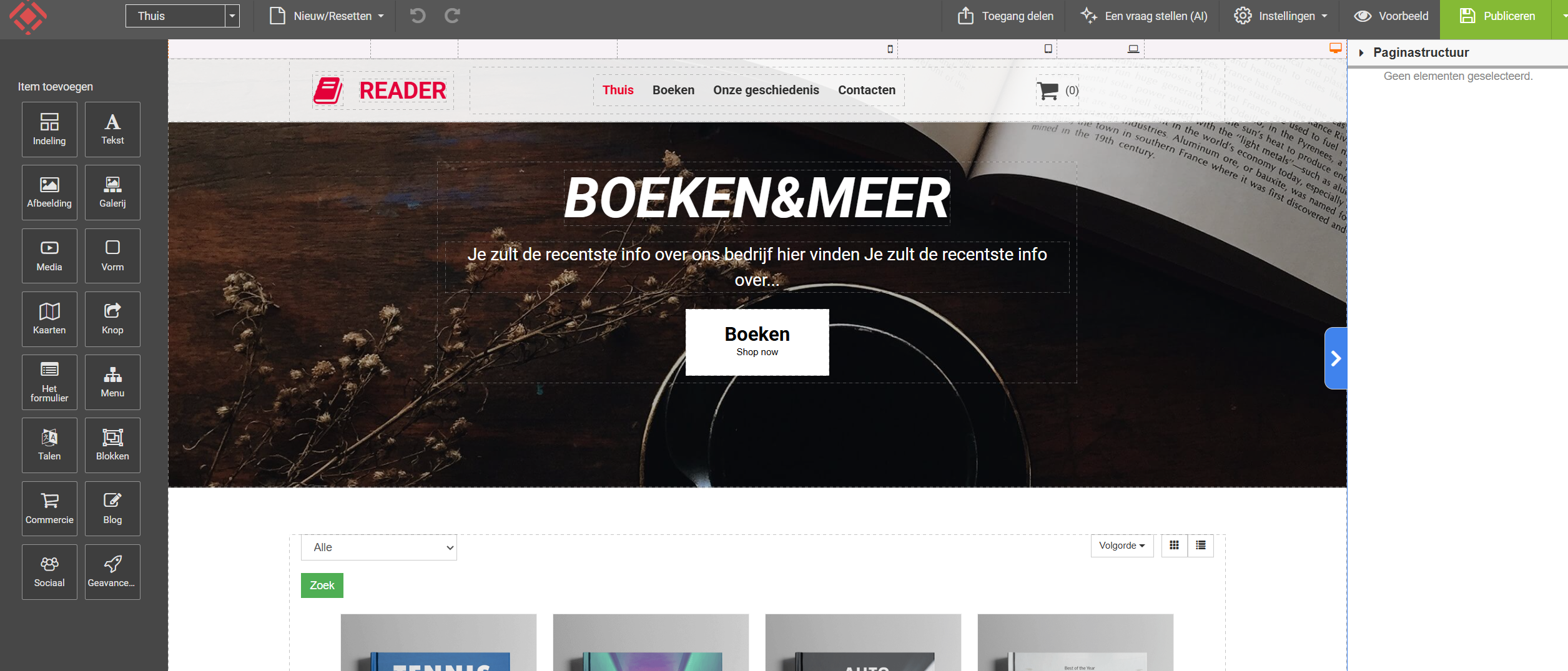
Sitebuilder then opens with the template you picked.
If you get stuck, feel free to ask our support team your question via: https://www.theory7.net/support/en-us
Looking for a website builder? See our plans.
0 van 0 vonden dit nuttig
