How do I restore a backup?
It is of course very annoying when something goes wrong with your website and you have to restore a backup. To limit that risk, Theory7 automatically makes multiple backups of your website files and databases every day. Depending on the plan you chose, these backups are kept for a certain period at an external location and do not count toward your storage limit. Within the applicable retention period, you can easily restore a backup whenever you want.
In this guide we explain step by step how to restore a backup yourself.
Step 1, log in to your hosting plan.
Log in to your hosting plan. Not sure how to do that? Then follow this guide.
Step 2, go to your backups.
In the left menu, click 'Extra features' and then click 'Restore Backups':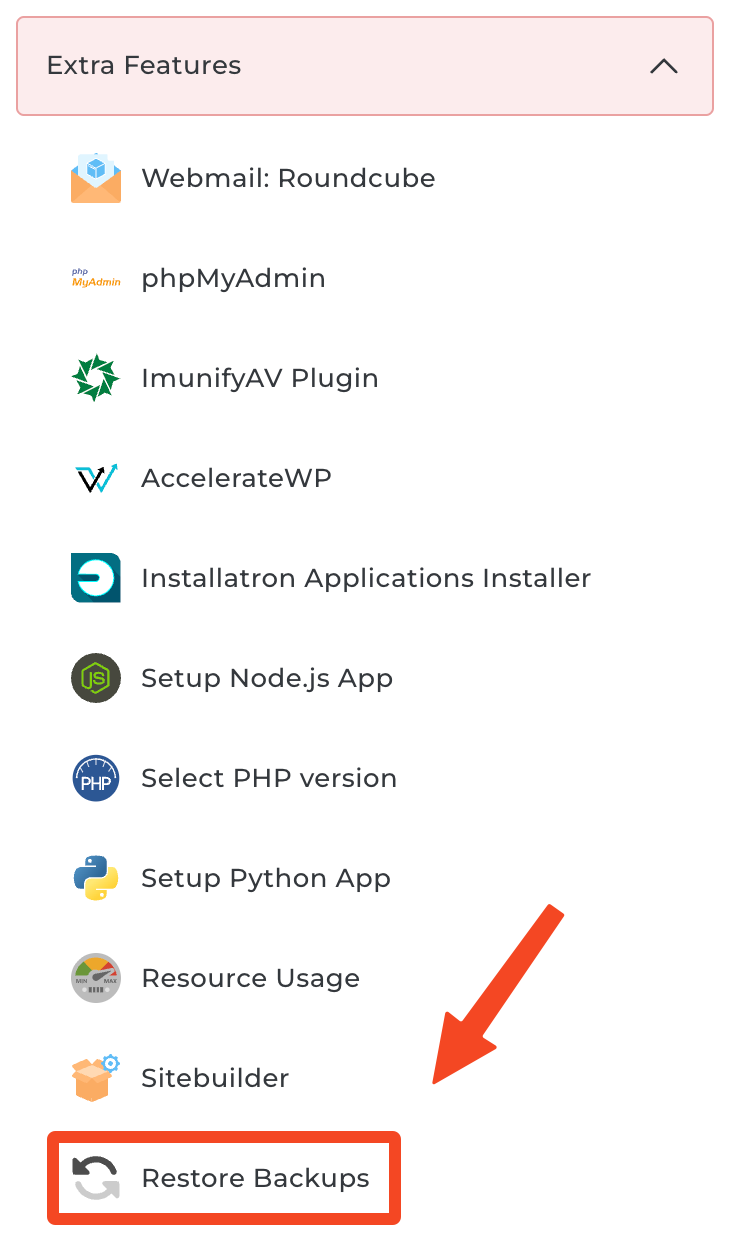
Step 3, restore the files.
On this page you can select the restore point as well as your website and/or email address(es).
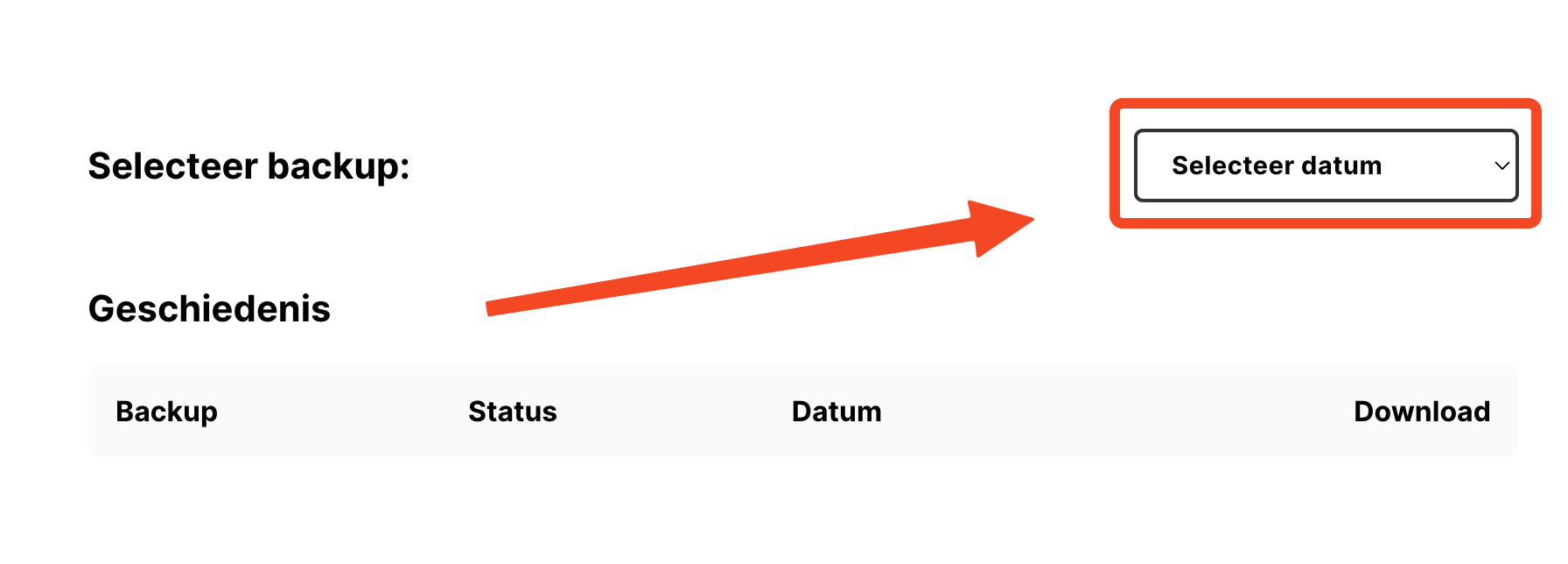
- First select the restore point you want. Depending on the size of your website(s), this may take a moment:
- Now check the domain you want and, if needed, the related email address.
- Also check the box to confirm that you agree to the current files being deleted. This action cannot be undone.
- Then click 'Restore' and your backup will be restored.
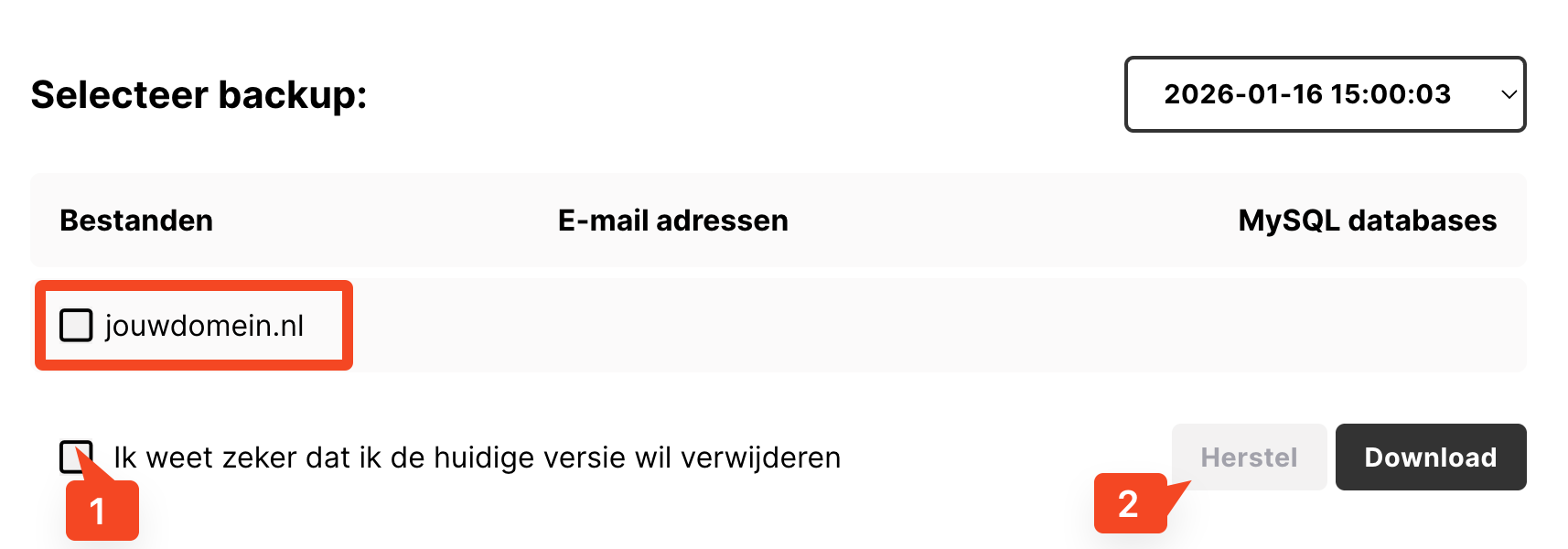
Note: A backup only restores files that are missing or different. Want to be sure the file structure is restored exactly as it is in the backup? Then empty the public_html folder of the website in question first.
Step 4, a matter of patience.
Restoring your backup can take a while. It depends on how large your website or websites were. Feel free to sit back and let our server do the work for you. You can also refresh the page to check the progress!
Still can't quite figure it out? Then feel free to contact us!
Looking for web hosting plans? See what we offer.
0 van 0 vonden dit nuttig
