Elementor for WordPress: A Complete Guide
Introduction
What is Elementor?
Elementor is a popular page builder plugin for WordPress that lets you design web pages visually without coding. Instead of writing HTML or CSS by hand, you can use Elementor to place elements (widgets) such as text boxes, images and buttons on the page with simple drag-and-drop. The plugin shows a live preview of your design while you build, which makes the process very intuitive. Since its launch in 2016, Elementor has grown into one of the most widely used WordPress plugins, with millions of active installations worldwide (Elementor Reached Five Million Active Installs in the WordPress).
Why would you use Elementor?
With Elementor, beginners and experienced developers alike can quickly set up a professional layout. You don't need technical knowledge to create a unique design. On top of that, Elementor works inside your existing WordPress environment, so you keep your familiar dashboard. For freelancers and agencies, Elementor offers a fast workflow: you can build complex pages for clients in a short time, including forms, portfolios and landing pages, without having to code from scratch every time.
Advantages of Elementor over other page builders:
- User-friendly interface: Unlike some other page builders (which, for example, only work in the back end), Elementor lets you edit visually on the front end. You see the result of your changes right away, which makes the design process easier than with traditional editors.
- Free basic version with lots of features: The free version of Elementor already includes dozens of widgets and templates. By comparison, some other builders (such as Divi or WPBakery) are only available as a paid option or offer less functionality in their free version.
- Extensive template library: Elementor has a large library of predesigned templates and blocks. This lets you start a design quickly by picking a template and customizing it. Other builders often have a more limited or less accessible selection of templates.
- Large community and extensions: Thanks to its popularity, there is an active community around Elementor. There are thousands of tutorials, Facebook groups and forums where you can find help. There are also many third-party add-ons/plugins that add extra Elementor widgets (free and paid), which expands the possibilities even further. For other page builders, this ecosystem is often smaller.
- Continuity and innovation: Elementor is updated very regularly with new features. It always supports the latest WordPress versions, and performance improvements and features (such as the recent AI integration) are rolled out quickly. This means Elementor gives you a future-proof tool.
Installing Elementor
Step-by-step installation guide:
Installing Elementor is easy and is done from the WordPress dashboard:
- Search for the plugin: Log in to your WordPress website and go to Plugins -> Add New Plugin. Type "Elementor" in the search field. You will see the plugin Elementor Website Builder (developer: Elementor.com).
- Install: Click the "Install Now button next to the Elementor plugin. Wait until WordPress has downloaded and installed the plugin.
- Activate: After installation, click "Activate. Elementor is now active on your site. A new Elementor item for the settings will appear in the WordPress menu on the left.
- Get started: Go to Pages -> Add New Page (or Posts -> Add New Post) and click "Edit with Elementor. The Elementor editor opens, and you can start designing right away.
Optional: Elementor also has a Pro version with extra widgets and templates. If you buy Elementor Pro, first install the free base plugin (as described above) and then upload/activate the Pro plugin you receive from Elementor. The Pro features are then added automatically inside the Elementor interface.
Requirements for using Elementor:
For Elementor to run smoothly, your WordPress site needs to meet a few minimum requirements:
- WordPress version: Elementor requires WordPress 5.2 or newer ([Resolved] Elementor Not Loading Issue). Older WP versions are not supported, so make sure your WordPress is up to date (preferably the latest version).
- PHP version: PHP 7.0 or higher is required ([Resolved] Elementor Not Loading Issue). Newer PHP versions (7.4, 8.0+) give better performance. Check with your hosting provider which PHP version is running and update if possible.
- MySQL version: A MySQL database 5.6 or higher (or an equivalent MariaDB version) is recommended ([Resolved] Elementor Not Loading Issue). This is usually standard with modern hosting.
- PHP memory limit: For WordPress in general, 128 MB RAM or more is recommended ([Resolved] Elementor Not Loading Issue). Because the Elementor editor is visual and can be fairly heavy, enough memory is important to prevent it from freezing. You can often raise the memory limit through
wp-config.phpor your hosting settings.
A stable hosting environment is also essential. Because you make a lot of visual changes with Elementor, you want a host that loads pages quickly and provides enough resources. Preferably choose a hosting plan that is specifically set up for WordPress. For example, the hosting from Theory7 is optimized for WordPress and meets the requirements above, which ensures fast load times and a smoothly running Elementor environment. Using a quality host prevents common problems (such as time-outs in the editor) and gives your website visitors a pleasant, fast experience.
Configuration and settings
After installation you can use Elementor right away, but it's a good idea to check a few basic settings first. In your WordPress dashboard, go to Elementor -> Settings. Here you can, among other things:
- Manage default colors and fonts: Elementor can apply its own colors and fonts to widgets. If you would rather keep your theme's style, turn off "Default Colors and "Default Fonts. Elementor will then use the colors/fonts of your active theme, so your design stays consistent with the rest of your site.
- Set up roles: Under the Permissions tab you can decide which user roles are allowed to work with Elementor. By default, only administrators and editors can use the Elementor editor. If you want authors to edit their own pages with Elementor, for example, you can grant those rights here.
- Experimental features: Elementor regularly adds new experimental features (under Elementor -> Experiments in recent versions). Here you can, for example, turn on an improved way of loading CSS/JS for better performance. As a beginner you can leave these alone, but advanced users can test optimizations here.
Creating a page with Elementor: Building a page works like this:
- Start a new page: Go to Pages -> Add New Page in WordPress. Give the page a title (for example "Home" or "About us"), but don't enter any content in the classic editor yet. Instead, click the "Edit with Elementor button.
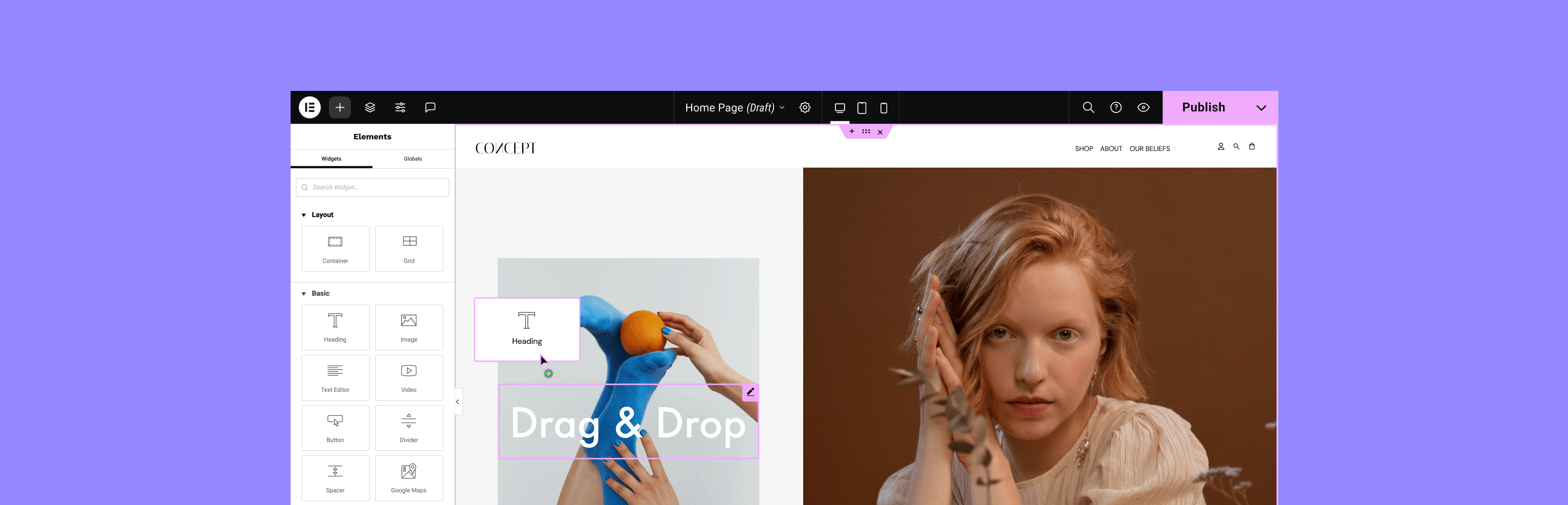
- Elementor interface: The Elementor editor opens. On the right you see your page (still empty), and on the left a panel with all available widgets (elements you can add). At the top you also see options, for example to load a template.
- Add sections and columns: Elementor works with a hierarchy of Sections > Columns > Widgets. Click the + icon to add a new section. You are asked to choose a structure (e.g. 1 column, 2 columns, etc.). Choose a layout; Elementor places the section on your page. A new section contains one column by default (or several, depending on your choice).
- Drag widgets: Now drag a widget from the left panel into a column in your section. For example, grab the "Heading widget and drag it into the column to add a title. You will immediately see sample text ("Add Your Heading Text Here") on the page. The settings for this widget appear in the left panel.
- Edit content: Click the placed widget (or select it in the left panel) to adjust its content and style. For example, you can change the sample heading text to anything you like, adjust the alignment, pick a different font or color, and so on. Changes are visible live right away.
- Add more elements: Add extra sections as needed for new rows in your design, and repeat the process to place widgets. You can stack as many sections as you need and split them into columns for your design.
- Save and view the page: When you're happy with the design, click the green "Publish button at the bottom right (or "Update" if it was an existing page). Your changes are saved. With the eye button (Preview) you can view the page the way visitors will see it.
Key widgets and elements:
Elementor offers a large number of widgets (elements) you can use. Some commonly used basic widgets are:
- Heading: For adding titles and headings. You can set H1, H2, H3, etc. to create a clear hierarchy on your page (important for SEO and readability).
- Text Editor: A text box for paragraphs or longer content. This widget is like a mini Word editor inside Elementor; you can type text, format it (bold, italic, lists), add links and more. Handy for body text, introductions, descriptions, etc.
- Image: To insert an image. You can choose a picture from the media library or upload one. You can then set the size and alignment, and optionally add a caption or alt text (alt text is important for accessibility and SEO).
- Button: For adding call-to-action buttons. You can set the button text, link and style (color, shape, icon, etc.). Buttons are essential for guiding visitors to important pages (such as contact or requesting a quote).
- Video: Lets you easily embed a YouTube, Vimeo or self-hosted video. You place the widget and enter the video URL; Elementor takes care of the embed code. You can set whether the video should autoplay, whether to show the controls, and so on.
- Image Gallery: To show several photos in an attractive gallery view. You select a set of images and Elementor turns them into a gallery with columns and rows. Ideal for portfolios or photo pages.
- Icon Box / Image Box: A widget that combines an icon or image with a title and text. This is handy for listing services or features in clear blocks. You choose an icon from the library (or upload an image) and add a heading and description.
- Spacer / Divider: Small but useful elements for adding white space (Spacer) or a line (Divider) to separate content. They help you make your layout airier and clearer.
Besides these basic widgets, advanced widgets are available in Elementor Pro, such as Form (for contact forms), Nav Menu (to design a menu), Slider, Testimonials, Price List, etc. With Pro you can also create complete templates for the header, footer and archive pages through the Theme Builder. That said, the basic widgets mentioned above are already available in the free version and cover most standard needs. By combining these elements you can create almost any page layout you want. Feel free to experiment with different widgets: you can always remove them again or change settings until the result is what you want.
Optimizing for performance and SEO
A beautifully designed site means nothing if it loads slowly or is hard to find. Fortunately, with Elementor (combined with some optimizations) you can achieve good performance and SEO-friendliness. We'll go over a few points to pay attention to.
SEO-friendliness of Elementor:
On its own, Elementor is SEO-friendly, as long as you use it well. The plugin generates clean HTML code and lets you use the right HTML tags for headings and text (Is Elementor Good for SEO?). This means search engines such as Google can read your content properly. A few tips to get the most SEO out of Elementor:
- Use headings structurally: Make sure you have one H1 per page (usually the page title), and use H2/H3 subheadings to divide sections. With the Heading widget you can set the level explicitly (H1 to H6). A clear structure helps search engines and readers.
- Mobile-first design: Elementor makes it easy to optimize your design for mobile devices (you can switch to the mobile view and make separate settings per device type). This matters, because Google uses mobile-first indexing, meaning the mobile version of your site carries a lot of weight for SEO. So always check that your Elementor pages look good and load fast on smartphones.
- Integration with SEO plugins: Elementor works well with popular SEO plugins such as Yoast SEO and Rank Math. You can fill in your meta tags, set focus keywords and, for example, run an SEO analysis without any problems while you use Elementor. The content you build with Elementor is simply recognized by these SEO tools. Use such a plugin to add meta titles, descriptions and schema markup to every page.
- Alt text and titles: Don't forget to fill in the Alt text for images in the Image widget; you can do this directly in that widget's Elementor settings. Alt text improves accessibility and tells search engines what the image is about, which can in turn help your SEO (for example in Google Images search results).
Optimizing performance (speed):
Page builders add extra code and scripts to make drag-and-drop possible, and this can affect load time. But with the following optimizations you can still make your Elementor site very fast:
- Use caching: Install a caching plugin to store your pages as HTML for faster delivery to visitors. Popular options include WP Super Cache, W3 Total Cache (free) or a premium solution such as WP Rocket. Caching reduces server load and means Elementor pages don't have to be "calculated" again for every visitor. According to best practices, caching is a must for every WordPress site.
- Turn on Elementor experiments: Check Elementor -> Experiments to see whether performance improvements are available (such as Improved CSS Loading or Inline Font Icons). Turning on these options (if stable) can reduce the number of files loaded, which makes your pages faster.
- Disable unused widgets: By default, Elementor loads what it needs for all widgets. If you never use certain widgets, you can disable them in Elementor -> Settings -> Integrations or through a plugin such as Elementor Experiments. Fewer loaded features means less code and often faster load times.
- Choose a lightweight theme: Use a fast, clean WordPress theme that works well with Elementor. The makers of Elementor offer the Hello theme themselves, an ultra-light theme made especially for Elementor. Themes such as Astra, OceanWP and GeneratePress are also known for their speed and Elementor compatibility. A light theme adds little bloat, so Elementor pages load efficiently.
- Limit unnecessary effects: Although it's tempting to add lots of animations, sliders and videos, "less is more" applies to performance. Overusing heavy elements can slow the site down. Use animations sparingly and optimize videos (for example by only loading YouTube videos when a user presses 'play', also known as lazy loading for video).
Optimizing images:
Large images are often the biggest culprit behind slow pages. Fortunately, you can solve this by compressing your images and loading them smartly. A handy plugin for this is Smush, a popular free tool for image optimization. Smush compresses images automatically on upload, without visible loss of quality. It also offers features such as lazy loading (only loading images when they come into view) and bulk optimization for existing media files. By using Smush, you reduce the file size of images and speed up your Elementor pages considerably, which benefits both the user experience and SEO (faster sites rank better in Google). Besides Smush, there are alternatives such as ShortPixel, Imagify and EWWW Image Optimizer that deliver similar results; choose whatever works best for you. The most important thing is to always resize images to web size before you use them in Elementor (a photo 5000px wide is rarely needed; 1200px is often enough for full screen) and let an optimization plugin do the rest.
In short: with caching, clean code, minimal extras and optimized images, you can build websites with Elementor that are beautiful and fast. Don't forget to test your site regularly with a tool such as Google PageSpeed Insights or GTmetrix and apply the recommendations for optimal performance.
Frequently asked questions and common problems
Although Elementor is generally user-friendly, there are a few common questions and problems users may run into:
- "Elementor won't load" (stuck loading screen): Sometimes the Elementor editor gets stuck while loading (you keep seeing the loading icon). This can have several causes. First check whether your hosting meets the minimum requirements (mentioned earlier: the right PHP/WP version, enough memory); insufficient memory or outdated software often causes problems ([Resolved] Elementor Not Loading Issue) ([Resolved] Elementor Not Loading Issue). Plugin conflicts can also be the culprit ([Resolved] Elementor Not Loading Issue). To test this, temporarily deactivate all other plugins except Elementor and see whether the editor loads now. If it does, activate the plugins one by one to find the one causing the trouble. Another point is your theme: for the test, switch to a default WordPress theme (e.g. Twenty Twenty-One) to see whether your current theme causes a conflict. Finally, if nothing works, try reinstalling Elementor or using a previous version (there may be a bug in the latest version), but make a backup first.
- Changes not visible on the live site: You changed something in Elementor, but you see no difference on the live website. This can be related to caching. Clear the cache of your caching plugin (or your browser cache) and reload the page. In Elementor you can also go to Elementor -> Tools -> Regenerate CSS and click that button; this forces Elementor to regenerate all CSS. These steps often solve the problem. Also make sure you click "Update in the editor after every change, otherwise your changes are of course not saved.
- Elementor disrupts my theme's layout: Some themes and Elementor get in each other's way when it comes to styling. If you notice that your header, footer or fonts look odd, check whether you have turned on "Disable Default Colors/Fonts in Elementor's settings (so your theme determines the styling). Conversely, you can also choose Elementor's Canvas template for a page, which gives you a blank page without the theme header/footer; handy for landing pages. Compatibility is usually good, but occasionally it takes some tweaking of settings.
- Is Elementor free, and what is the difference with Pro? Yes, the core Elementor plugin is free to use. It already includes more than 40 widgets (such as images, video, text, button, map, etc.) and 30+ templates. For many websites this is enough. Elementor Pro is a paid upgrade that adds extra functionality: you get ~50+ Pro widgets (including Forms, Slider, Navigation Menu, Price List), a Theme Builder to create your header/footer, a Popup Builder for pop-ups, and access to a large number of Pro templates and an icon library. With Pro you also get official support from the Elementor team. The free version has community support through the forum. For beginners, we recommend starting with the free version and deciding later whether the Pro extras are worth the investment.
- Where can I find help and support? If you get stuck, there are plenty of support resources. First, Elementor has extensive documentation and a Help Center on its official website, with guides for every widget and setting. There is also a forum on WordPress.org specifically for Elementor (for users of the free plugin) where you can ask questions and get answers from the community or Elementor developers. There are also various Facebook groups (such as "Elementor Community [NL]" or the international group) where experienced users share tips and tricks. Because Elementor is so popular, you can also find hundreds of tutorial videos on YouTube that show step by step how to create certain designs or solve problems. Finally, if you are an Elementor Pro user, you can always contact official support with urgent questions through your account at my.elementor.com; they usually respond within 1 or 2 business days. The community around Elementor is very active and helpful, so you're not on your own.
Elementor and AI
Does Elementor have AI?
Yes. Since 2023, Elementor has had AI features integrated into the plugin. This means you can use artificial intelligence inside the Elementor editor to make certain tasks easier. Elementor AI is a separate module (for some features you need a small additional subscription) that is available directly in the editor (AI Website Builder for WordPress | Generate Site in Minutes). So you don't have to go to external AI tools or websites; the AI assistant is built in while you edit pages.
How can AI help you design pages?
AI in Elementor is still in its early stages, but it already offers several handy uses:
- Writing or editing text automatically: Say you're struggling to come up with a catchy intro for your page. With Elementor AI you can type a prompt (e.g. "Write an inviting introduction for a website about healthy eating) and the AI generates a suggested text. You can also select existing text and have the AI rewrite it in a different tone (more formal, more enthusiastic) or translate it. This speeds up the writing process enormously, especially if writing isn't your strong suit.
- Generating code & CSS: For advanced users: the AI can also help write custom CSS code or small scripts. In the Elementor Code Highlight widget or the Custom CSS section, for example, you can ask: "Give this section a shadow and round the corners with CSS. The AI then generates the CSS code you need, which you can apply right away (AI Website Builder for WordPress | Generate Site in Minutes). This is handy if you're not a developer but want to achieve a specific effect; the AI acts as a kind of coding assistant.
- Generating images: A brand-new option is generating images with AI. You describe in words which image you need (e.g. "an illustration of a laptop on a desk in cartoon style) and Elementor AI will try to create a matching image. This is based on generative AI (similar to DALL-E or other image AI). You can use the result on your page right away. Although this technology is still developing, it can sometimes be a quick way to get a unique image or icon without having to use Photoshop.
- Layout and design suggestions: Elementor has a component called AI Site Planner / AI Co-pilot. It can, for example, create a first draft of a page based on a few inputs. Think of a rough wireframe or layout with placeholder content that fits an industry. You describe what kind of site or page you want (e.g. "landing page for a yoga studio") and the AI can suggest the sections and content that should be on it. You can then use such a generated wireframe as a starting point and refine it further with your own content. It's like having a brainstorming buddy who helps you get started on a blank canvas.
The great thing about these AI features is that they work contextually: the AI knows which widget you're working in and what content surrounds it, so the suggestions are relevant. Of course, AI is no replacement for human creativity: see it as an assistant that saves you time on routine tasks or gives you inspiration. You always stay in control of the final design and content yourself. For beginners and advanced users alike, AI in Elementor can speed up the design process enormously: beginners get help with text and design, while advanced users can prototype and code faster with AI support.
(Note: Elementor's AI features only work in recent versions of the plugin. Update to version 3.13+ to use the text/code generator and 3.14+ for image generation. For intensive AI use you may also need a paid AI plan once you've used up the free credits, depending on how many requests you make.)
Is Elementor right for you?
Elementor has become an indispensable tool for WordPress users who want more control over the design of their website without diving into code. In this guide we covered the key points, from what Elementor is exactly and how to install it, to setting up pages, optimizing for speed/SEO, solving problems and even the latest AI features.
Elementor's strength lies in its versatility and ease of use: a beginner can set up a good-looking site within a few hours with the drag-and-drop interface, while an advanced web designer can use the fine-grained settings and extension options to build pixel-perfect, unique websites. With features such as responsive editing, a huge library of widgets & templates and a solid community for support, Elementor significantly lowers the barrier to creating professional websites.
In short, the Elementor plugin is a valuable addition to almost any WordPress website. It saves you time, gives you creative freedom and keeps evolving with new features (such as AI) that give you even more possibilities. Whether you're a blogger, small business owner, marketer or developer, Elementor gives you the tools to turn your ideas into a beautiful, functional website. Try it yourself and discover how Elementor takes your WordPress experience to the next level!
0 van 0 vonden dit nuttig
