How to Move Your Website to Theory7 with Installatron
Want to move your website to Theory7.net without any hassle? With Installatron you can easily move your WordPress, Joomla or Magento site or another website without complicated manual migrations. In this guide you'll learn how to import your website safely and quickly via Installatron.
1. What is Installatron and why use it?
Installatron is an automatic installation and migration tool that many web hosting providers offer in your DirectAdmin, cPanel or Plesk control panel. It lets you easily move applications such as WordPress, Joomla or Magento to a new hosting environment.
Benefits of Installatron:
- Automatic migration without technical knowledge
- No manual downloading and uploading of files
- Your settings, themes and plugins are preserved
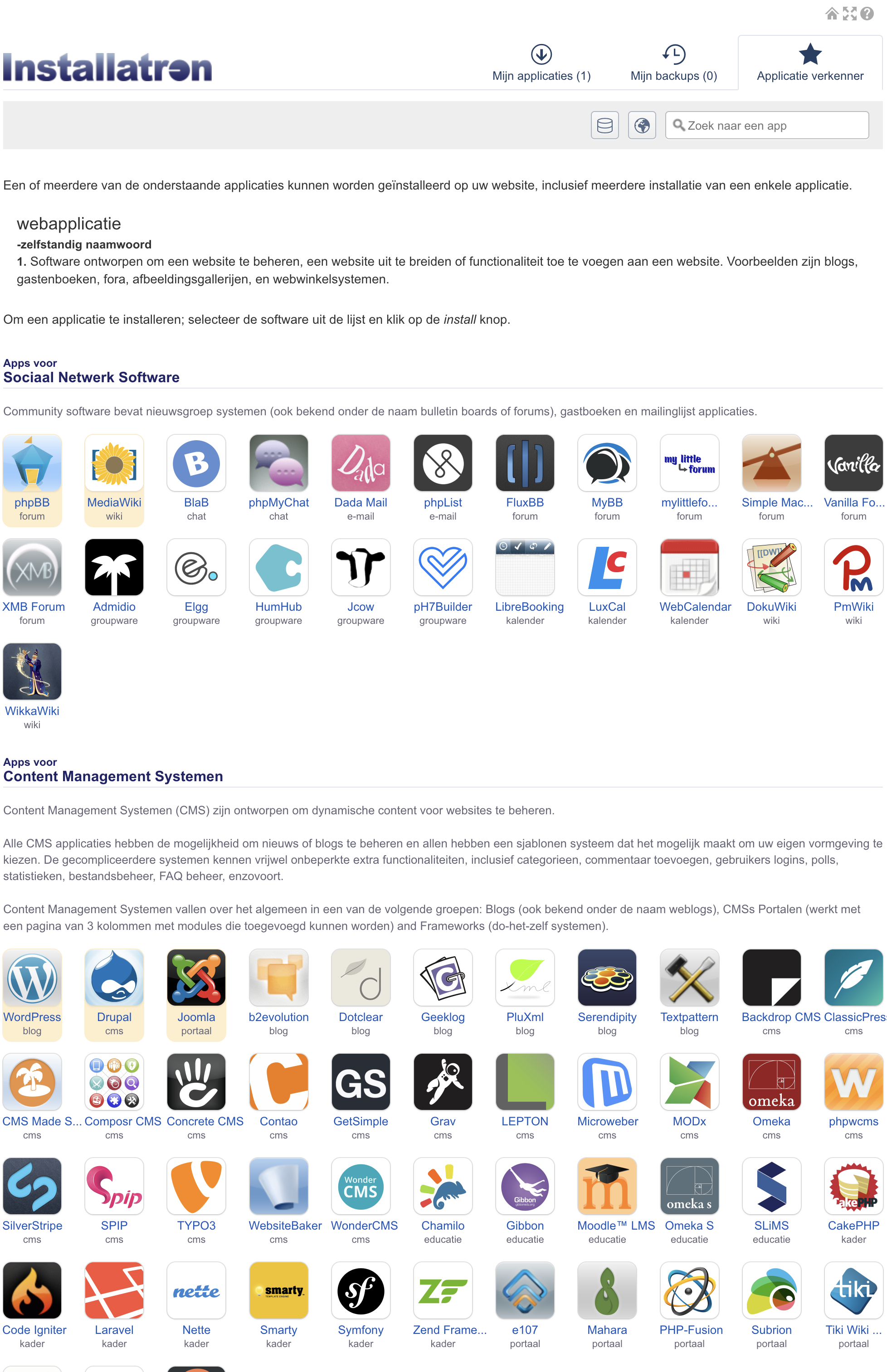
- WordPress vs Joomla vs Drupal: Which CMS is right for you?
2. Preparing for the move
Before you start, gather the following details from your current hosting provider:
- FTP details (server address, username and password)
- Database details (database name, username and password)
- Login details for your CMS (e.g. WordPress admin)
- The URL of the website you want to move
Also check that the new hosting environment supports PHP versions and settings that match your current website.
3. Logging in to DirectAdmin and opening Installatron
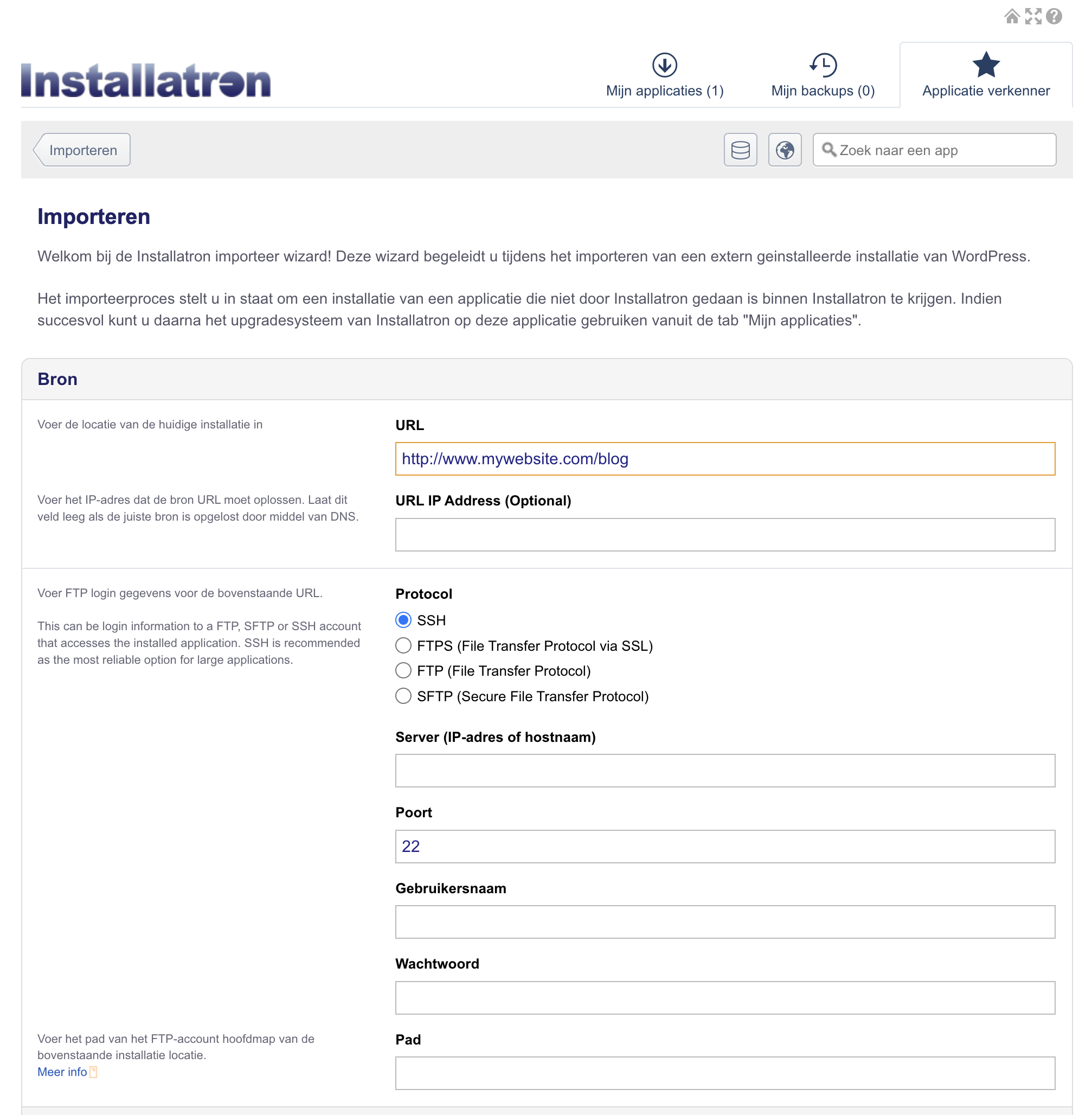
- Log in to the DirectAdmin environment of your Theory7.net hosting package.
- Under “Advanced Features”, look for Installatron Application Installer and click it.
- Select the domain where you want to place your website.
4. Importing your website into Installatron
-
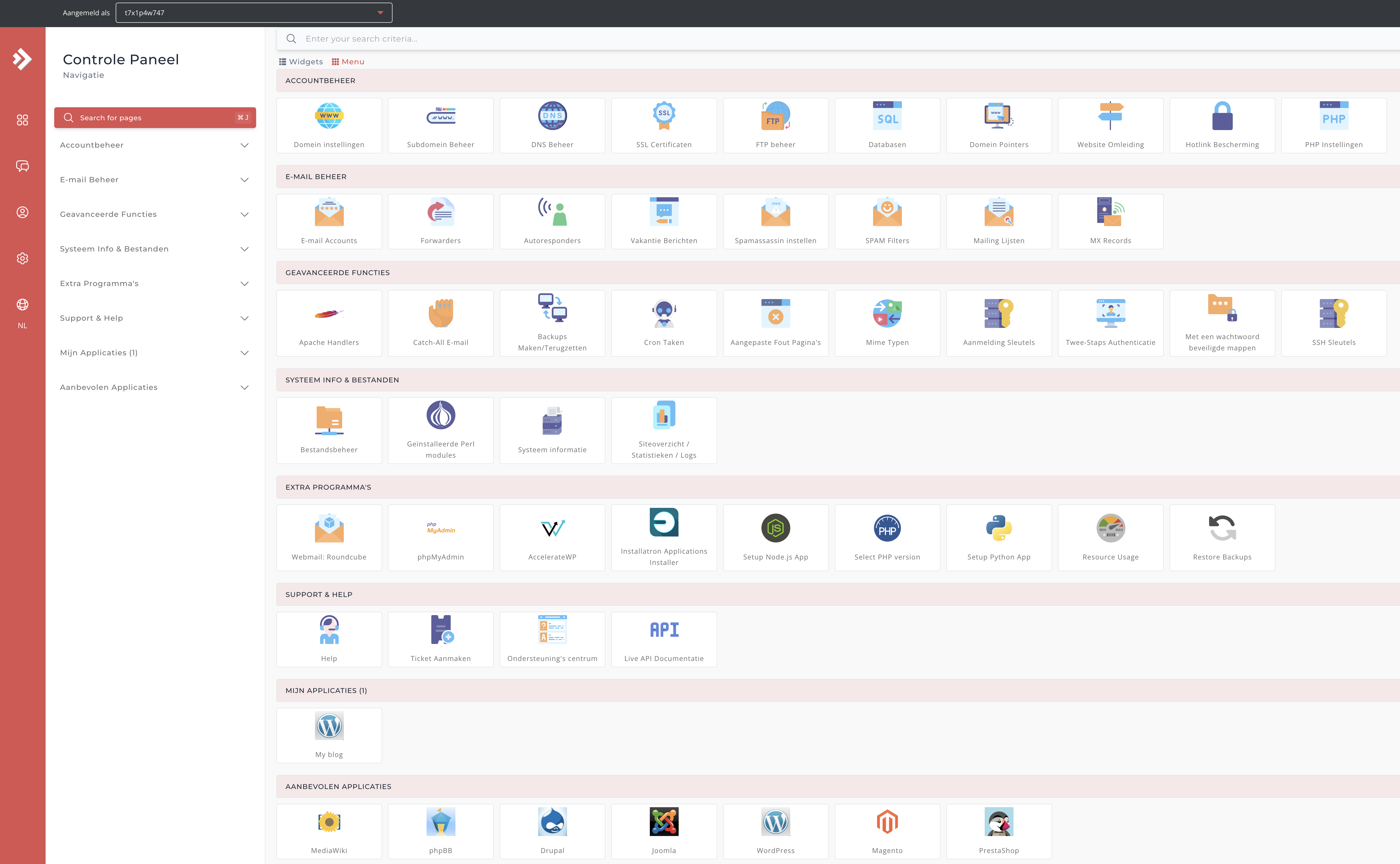
In Installatron, choose “Import existing install”.
-
Select “From different account” if your site is on another server or with another hosting provider.
-
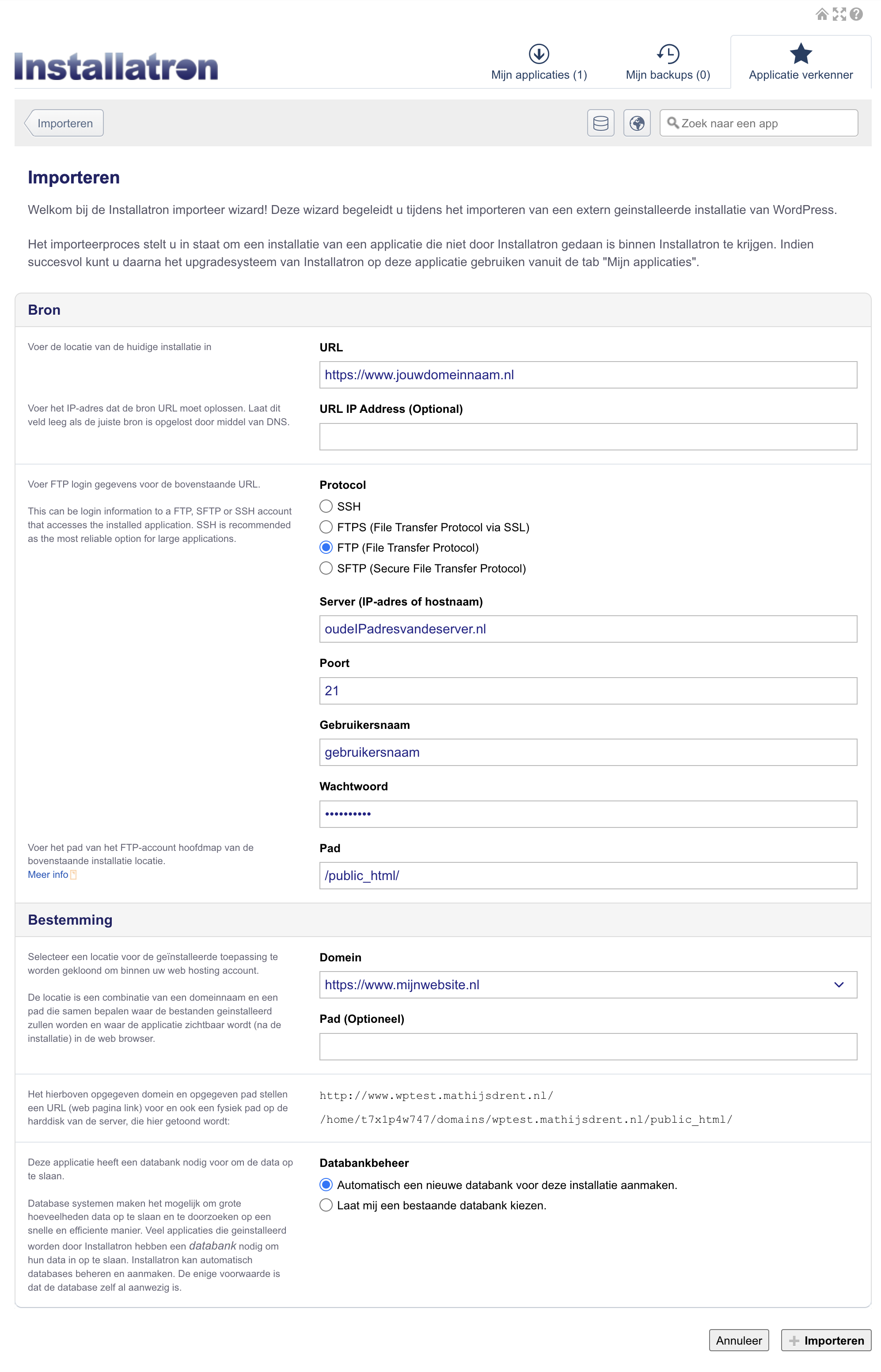
Enter the details of your old hosting account:
- Domain name of your current site
- FTP server address and login details
- Database information
-
Click “Import” and wait while Installatron carries out the migration.
5. Configuring your domain name and settings
After a successful migration, the domain name needs to point to your new hosting package at Theory7.net, so that people who visit your domain name end up on your new hosting package.
To do this, follow these steps:
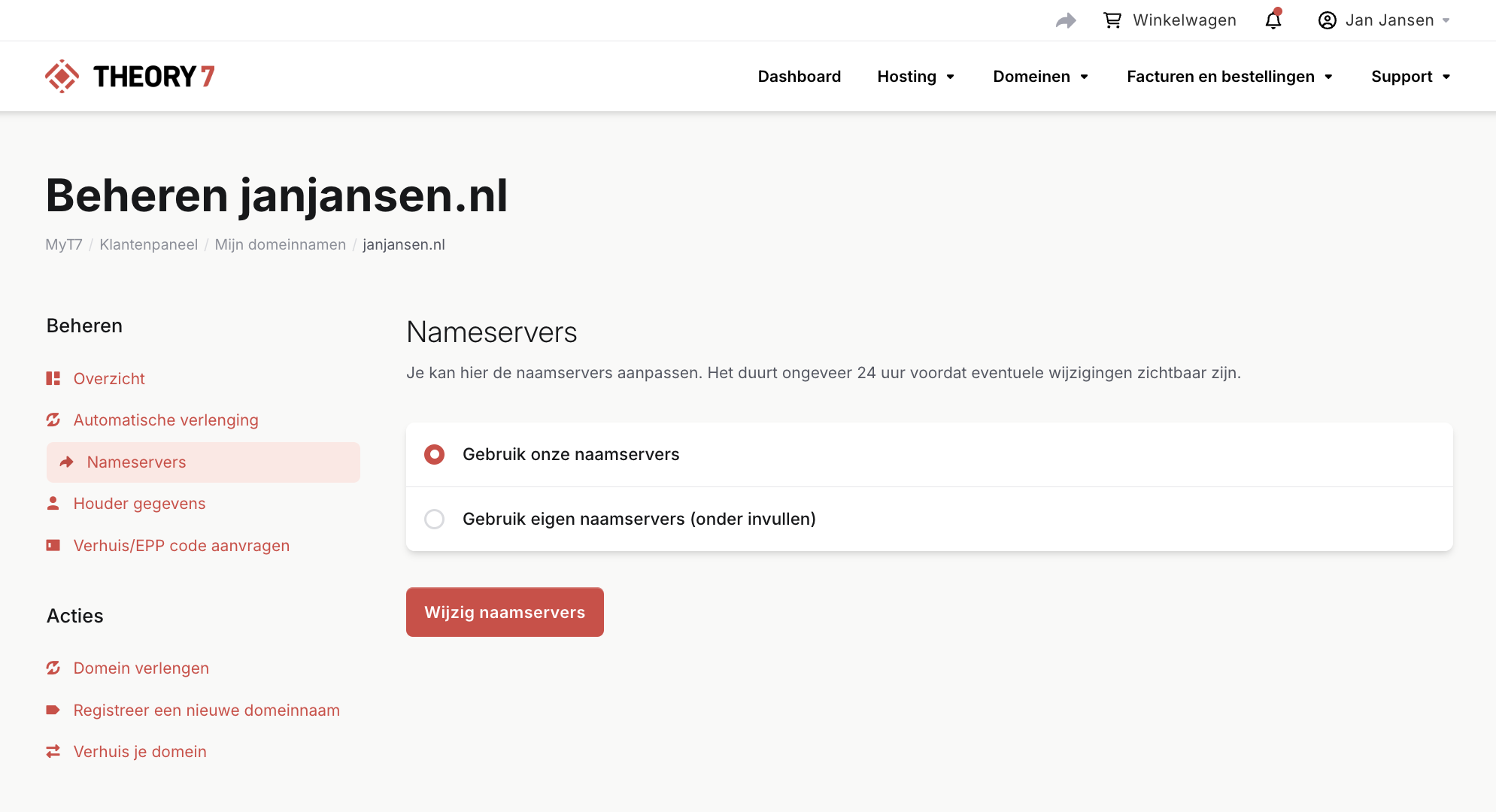
- Change the nameservers to the values you received in the email for your new hosting package. The easiest way is to click "Use our Nameservers" when managing your domain name.
Note:
If you have changed the nameservers of your domain name, it can take 2 to 4 hours before the internet has processed this change and your domain name points to the new hosting package. - Check the site URL in your WordPress/Joomla settings to prevent your website from still pointing to the old server.
- Check your .htaccess file in case changes are needed. It must not contain any references to the old server.
6. Checking and finishing your website
After the migration, it is important to test whether everything works correctly.
- Open your website and click through the pages to check for errors.
- Test the login page of your CMS and check that your plugins and themes work correctly.
- Check that contact forms and links still work properly.
- Clear your browser cache and any caching plugins.
7. Common problems and solutions
The site still points to the old hosting.
Solution: Check the nameserver settings or the DNS settings and wait for propagation (sometimes takes 24 hours).
Error messages when logging in to WordPress/Joomla.
Solution: Check the database configuration in wp-config.php or configuration.php.
Files or images are missing.
Solution: Check the permissions of files and folders via FTP (755 for folders and 644 for files).
Files or images are missing.
Solution: In the WordPress admin, check under Settings -> Media that no path has been entered there. If a path is entered, make sure it is changed to wp-content/uploads.
8. Move complete
Your website has been successfully moved with Installatron! This method saves you time and helps you avoid mistakes that come with a manual migration. If you still run into problems, please contact us. We will of course be happy to help you and make sure all problems are resolved.
Looking for web hosting plans? See our plans.
0 van 0 vonden dit nuttig
