How to Set Up Email on iPhone and iOS
You have created your email address and of course you now want to get your mail on your iPhone as well. With these easy steps, you will have it done in no time!
Add an email address to your iPhone
- Go to Settings> Apps> Mail and tap Mail Accounts.
- Tap Add Account > Select from list and tap Other
-
Enter your email address and the matching password.
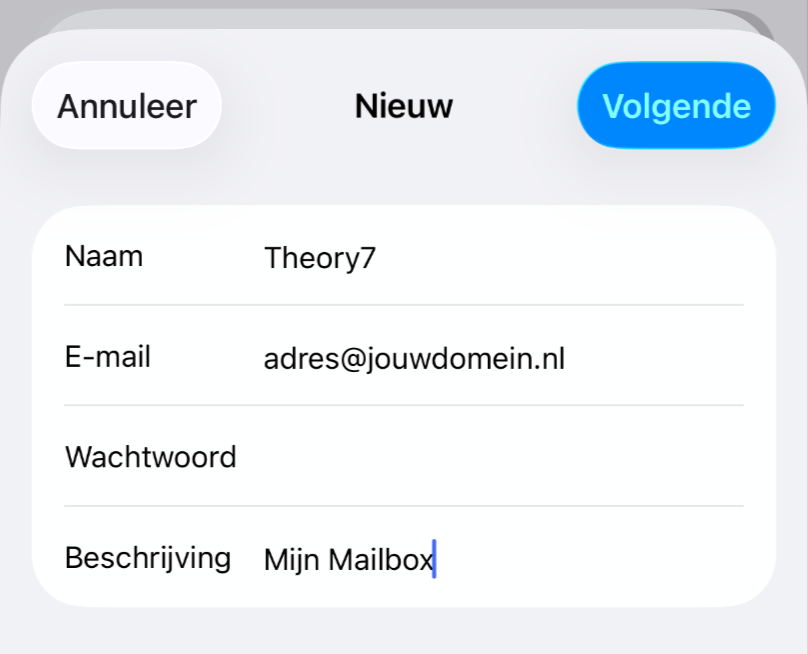
'Name' is only the name of the mailbox on your device; you can leave it empty if you like. - You will see a follow-up window where you need to enter the mail server manually. Fill in the following:
| Incoming Mail Server | |
| Host Name | mail.theory7.net |
| User Name | address@yourdomainname.nl |
| Password | The password you created |
| Outgoing Mail Server | |
| Host Name | mail.theory7.net |
| User Name | address@yourdomainname.nl |
| Password | The password you created |
It will then look like this:
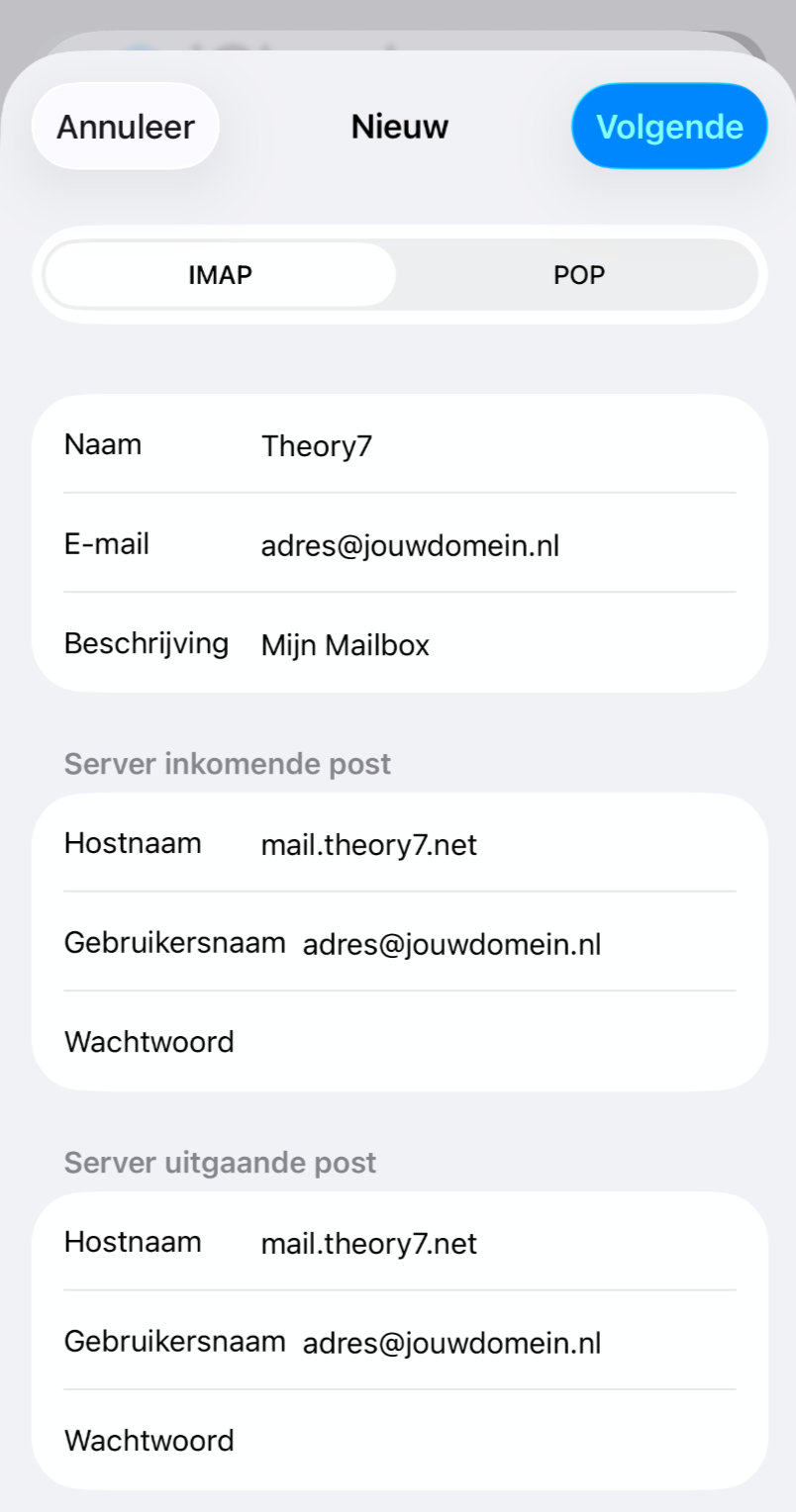
5. Tap Next and you will now connect to your email account. And then you are done! You can repeat these steps to add more addresses.
If you still can't quite figure it out or have any questions, feel free to contact us. We will of course be happy to help you further!
Looking for a professional email address? See our offer.
Was dit artikel nuttig?
0 van 0 vonden dit nuttig
