Set Up Email in the macOS Mail App
You have created your email address, and now of course you also want to use it on your MacBook. We explain how to easily add your email address to the Mail app in macOS.
Open the Mail app
- Open the Mail app.
- In the top left, select Mail and then click 'Add Account(on a Dutch-language Mac: 'Voeg account toe).
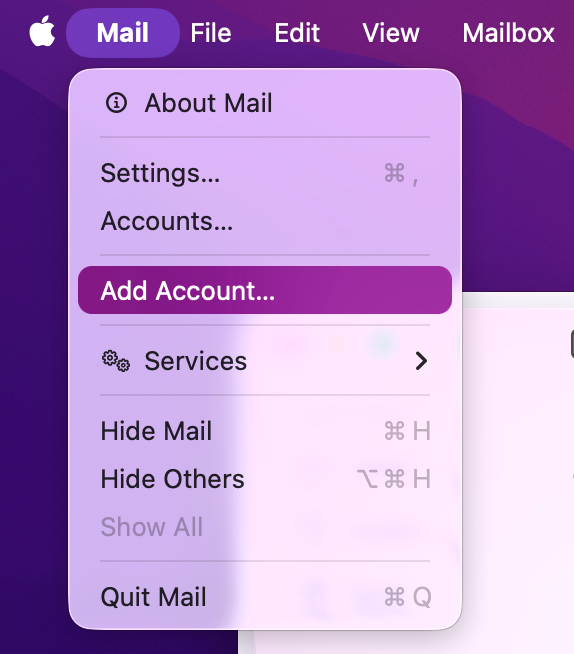
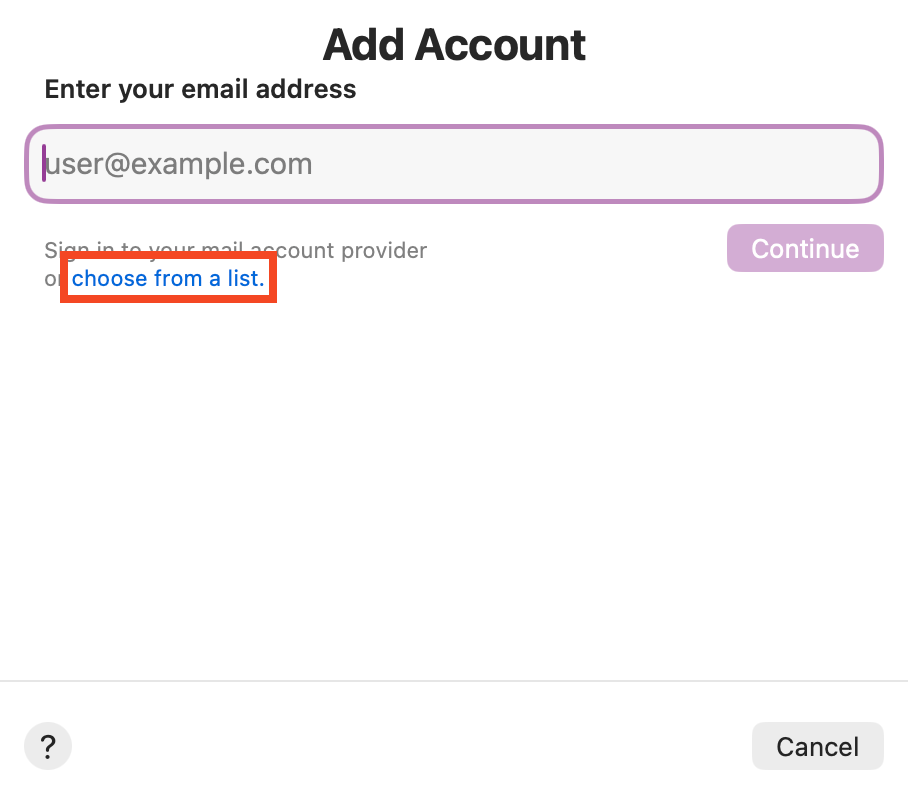
- Next you see a sign-in screen. Because we are adding your own email address, click: 'Choose from a list(Dutch: 'Kies uit lijst).
-
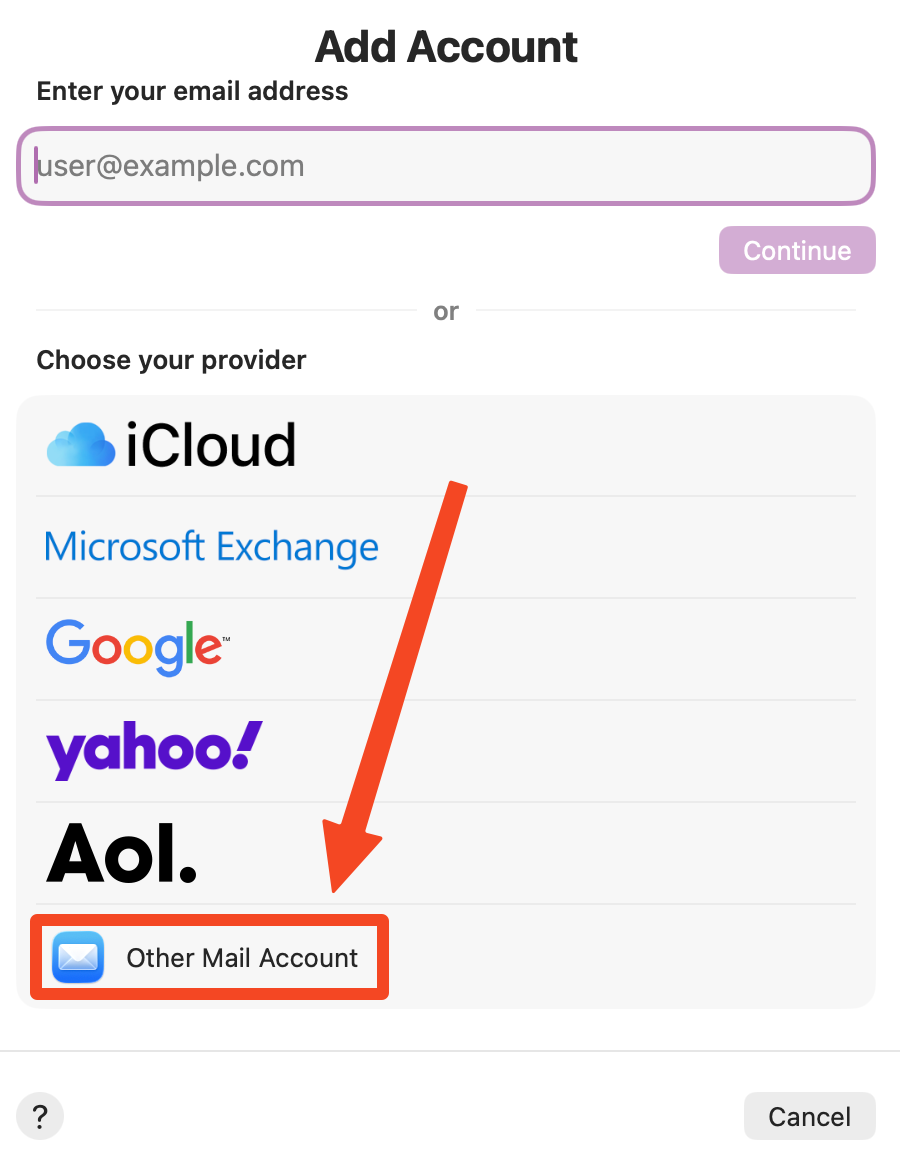
Then click 'Other Mail Account(Dutch: 'Andere mail-account).
-
Now enter your name, email address and the matching password, and then click: 'Sign In' / 'Log in'.
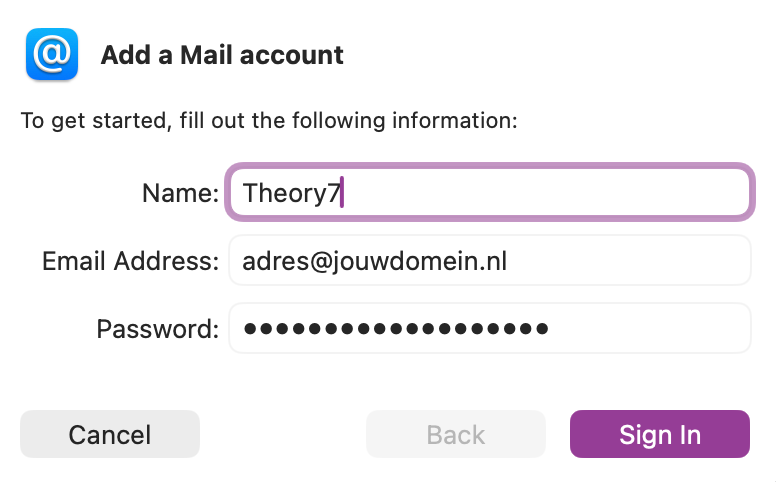
(under name you can enter the name the mailbox gets; this is only visual and handy if you are going to add several accounts)
Adding the correct mail server
Because we are adding an account manually, you get a message that the details are incorrect or cannot be retrieved. That is fine, and it lets you add the correct mail server manually. That is what we will do now.
-
Enter the correct email address and matching password, plus our mail server details:
mail.theory7.net.
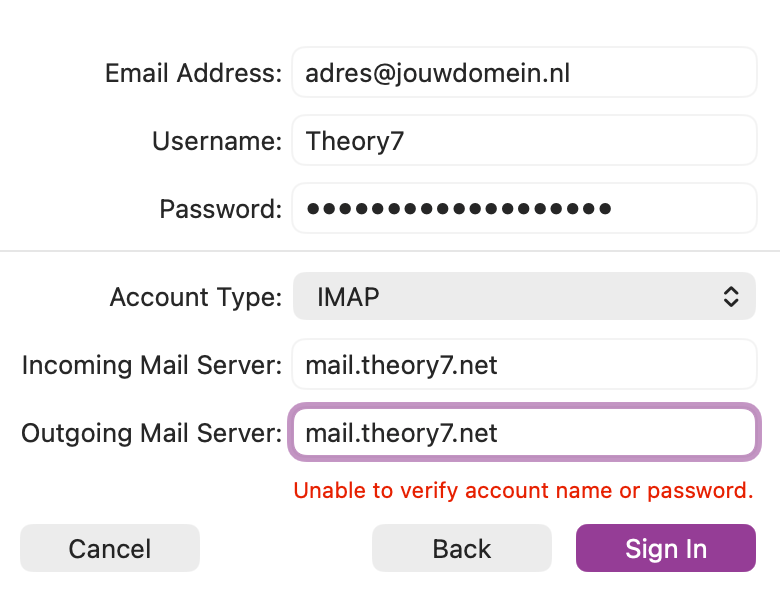
Then click 'Sign In' / 'Log in' and you're done! You will see that you can now view and manage your entire mailbox.
If you still can't quite figure it out or have any questions, feel free to contact us. We will of course be happy to help you further!
Looking for a professional email address? View our plans.
0 van 0 vonden dit nuttig
